How to Install Multiple Versions of Xcode on the Same macOS Machine
Download older or beta versions of Xcode from Apple's developer site and install them alongside the App Store version on the same Mac.

As an iOS developer, you often have to coordinate and use a specific versions of Xcode as part of a team. Especially if the codebase gets older, bigger and more complex.
It becomes essential then to install multiple versions of Xcode on the same machine. Here it’s how to do it.
Latest Xcode version
The latest version of Xcode should generally be installed from the AppStore, since Apple does not provide a downloadable version. It will get updated by the AppStore when a new stable version comes out (automatically or manually depending on your AppStore settings).
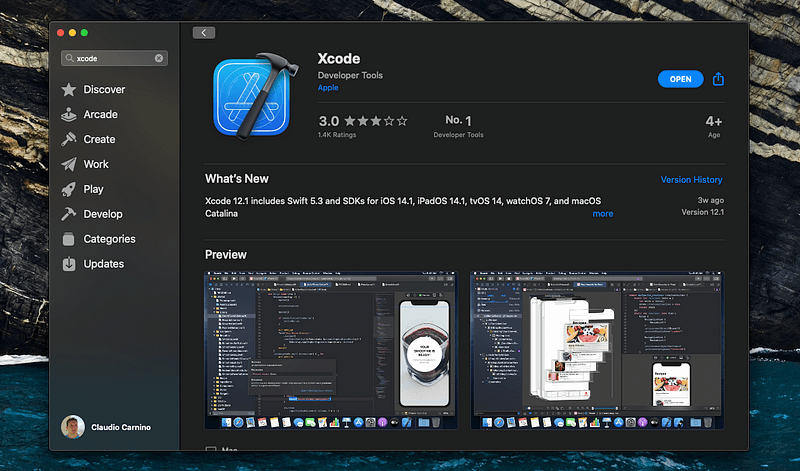
This Xcode version will just be named Xcode in your Applications folder.
Older Xcode versions
You can download old versions of Xcode and install them on the side of the latest one. So you can just choose which version you want to launch depending on your situation.
Open https://developer.apple.com/download/more/ and login with your developer account. Then write Xcode in the left column’s search bar. You will now be able to dowload older and newer versions Xcode, including betas and RCs.
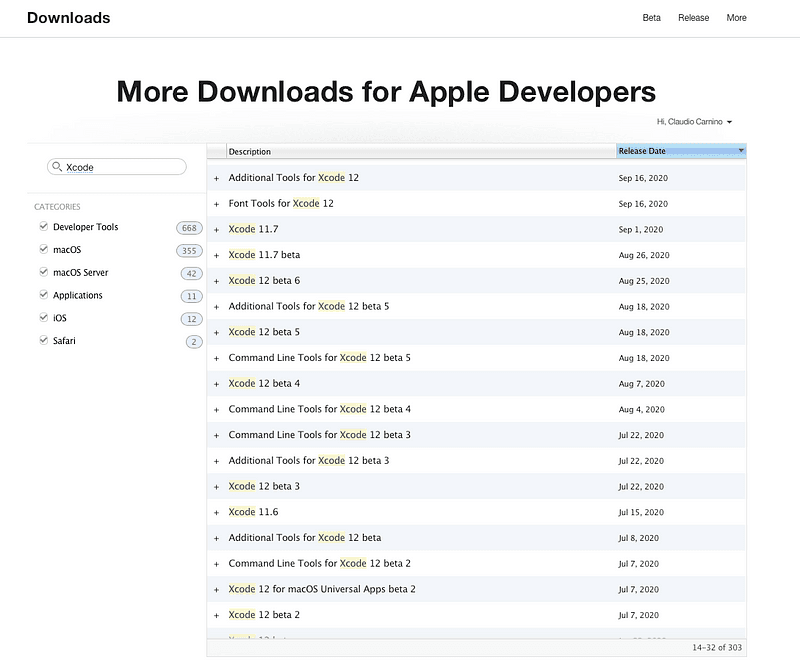
After downloading the archive, unpack it. Rename the extracted Xcode app something like Xcode_11.7. Then, move it into the Applications folder.
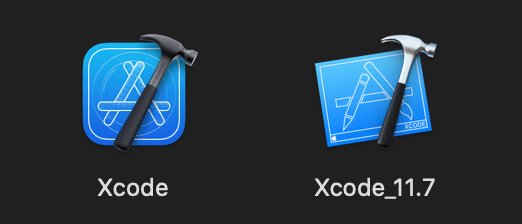
You are done. Good development!
Read next
Get Started With Swift for WebAssembly on macOS With SwiftWasm
Installing the experimental Swift snapshot with WebAssembly support on macOS, then getting the first Swift code running inside a Wasm runtime.
Create a React and SwiftUI-Inspired Web App With Swift for WebAssembly on MacOS With SwiftWasm
Building a web UI in SwiftUI-inspired syntax with Tokamak, compiled to WebAssembly by SwiftWasm — the toolchain, the project setup and the first app.
How to Get Confirmation Alert Before Quitting Safari on macOS
Stop losing thirty tabs to a mistyped ⌘Q: remap Safari's Quit shortcut to ⌥⌘Q, then wire ⌘Q to an AppleScript that asks before quitting.